Upgrade Proxmox 8 to 9 Without Breaking Your Homelab
Let’s get one thing out of the way:
Proxmox upgrades are not fragile.
People are.
Most guides assume:
- nothing goes wrong
- you don’t interrupt anything
- you don’t get stuck in a pager
- you don’t panic halfway
That’s not reality.
This guide is based on an actual upgrade — including:
- interrupted upgrade
- broken package state
- lock issues
- recovery
If you follow this, you’ll finish the upgrade even if things go sideways.
🧭 What This Covers
- Proxmox VE 8 → 9
- No-subscription repo
- Single-node homelab (or small cluster)
- GPU passthrough setups (Plex, etc.)
- Recovery from broken upgrades
⚠️ Before You Start (Do Not Skip This)
1. Backup
If your backups are “probably fine”, they are not fine.
- Backup all VMs and containers
- Test restore if you’re serious
2. Upgrade to latest Proxmox 8 first
apt update
apt dist-upgrade
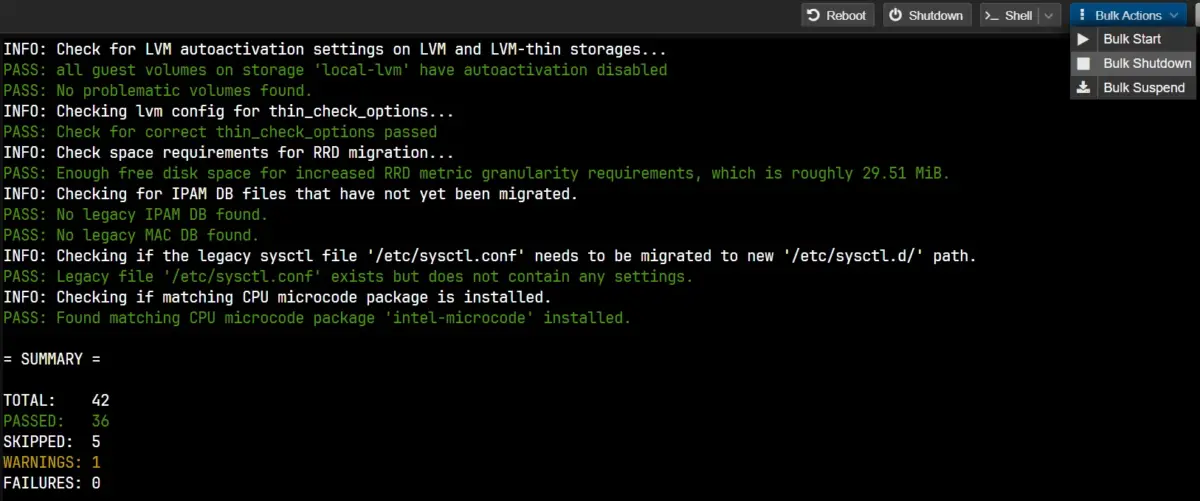
3. Run the upgrade checker
pve8to9 --full
You want:
- ❌ 0 failures
- ⚠️ warnings are acceptable
4. Disk space
df -h /
Minimum:
- 5GB usable
- 10GB preferred
Here is an example:
root@pve2:~# df -h /
Filesystem            Size  Used Avail Use% Mounted on
/dev/mapper/pve-root   94G   11G   79G  12% /
🛑 Stop Everything (Yes, Everything)
Before touching repositories:
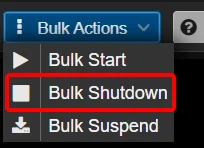
From UI:
Node → Bulk Actions → Bulk Shutdown
This is not optional if you care about stability.
Why?
Because during upgrade:
- networking restarts
- services reload
- kernel changes
Running VMs during this:
- can hang
- can corrupt writes
- can behave unpredictably
You gain nothing by keeping them running.
🚀 Phase 1 — Switch Repositories
1. Switch Debian to Trixie
sed -i 's/bookworm/trixie/g' /etc/apt/sources.list
2. Remove old Proxmox repo
rm /etc/apt/sources.list.d/pve-install-repo.list
3. Add Proxmox 9 repo (no-subscription)
cat > /etc/apt/sources.list.d/proxmox.sources << EOF
Types: deb
URIs: http://download.proxmox.com/debian/pve
Suites: trixie
Components: pve-no-subscription
Signed-By: /usr/share/keyrings/proxmox-archive-keyring.gpg
EOF
4. Remove Ceph repo (if unused)
rm /etc/apt/sources.list.d/ceph.list 2>/dev/null
rm /etc/apt/sources.list.d/ceph.sources 2>/dev/null
Here is how it should go as an example:
root@pve2:~# sed -i 's/bookworm/trixie/g' /etc/apt/sources.list
root@pve2:~# rm /etc/apt/sources.list.d/pve-install-repo.list
root@pve2:~# cat > /etc/apt/sources.list.d/proxmox.sources << EOF
Types: deb
URIs: http://download.proxmox.com/debian/pve
Suites: trixie
Components: pve-no-subscription
Signed-By: /usr/share/keyrings/proxmox-archive-keyring.gpg
EOF
root@pve2:~# rm /etc/apt/sources.list.d/ceph.list 2>/dev/null
rm /etc/apt/sources.list.d/ceph.sources 2>/dev/null
root@pve2:~#
5. Update
apt update
6. Verify
apt policy
You should NOT see:
- ❌ bookworm
You SHOULD see:
- ✅ trixie
- ✅ pve-no-subscription
Example of the apt policy command:
Package files:
 100 /var/lib/dpkg/status
     release a=now
 500 http://download.proxmox.com/debian/pve trixie/pve-no-subscription amd64 Packages
     release o=Proxmox,a=stable,n=trixie,l=Proxmox Debian Repository,c=pve-no-subscription,b=amd64
     origin download.proxmox.com
 500 https://deb.nodesource.com/node_22.x nodistro/main amd64 Packages
     release o=. nodistro,a=nodistro,n=nodistro,l=. nodistro,c=main,b=amd64
     origin deb.nodesource.com
 500 http://security.debian.org/debian-security trixie-security/main amd64 Packages
     release v=13,o=Debian,a=stable-security,n=trixie-security,l=Debian-Security,c=main,b=amd64
     origin security.debian.org
 500 http://deb.debian.org/debian trixie-updates/main amd64 Packages
     release v=13-updates,o=Debian,a=stable-updates,n=trixie-updates,l=Debian,c=main,b=amd64
     origin deb.debian.org
 500 http://deb.debian.org/debian trixie/contrib amd64 Packages
     release v=13.4,o=Debian,a=stable,n=trixie,l=Debian,c=contrib,b=amd64
     origin deb.debian.org
 500 http://deb.debian.org/debian trixie/main amd64 Packages
     release v=13.4,o=Debian,a=stable,n=trixie,l=Debian,c=main,b=amd64
     origin deb.debian.org
🔥 Phase 2 — The Upgrade
apt dist-upgrade
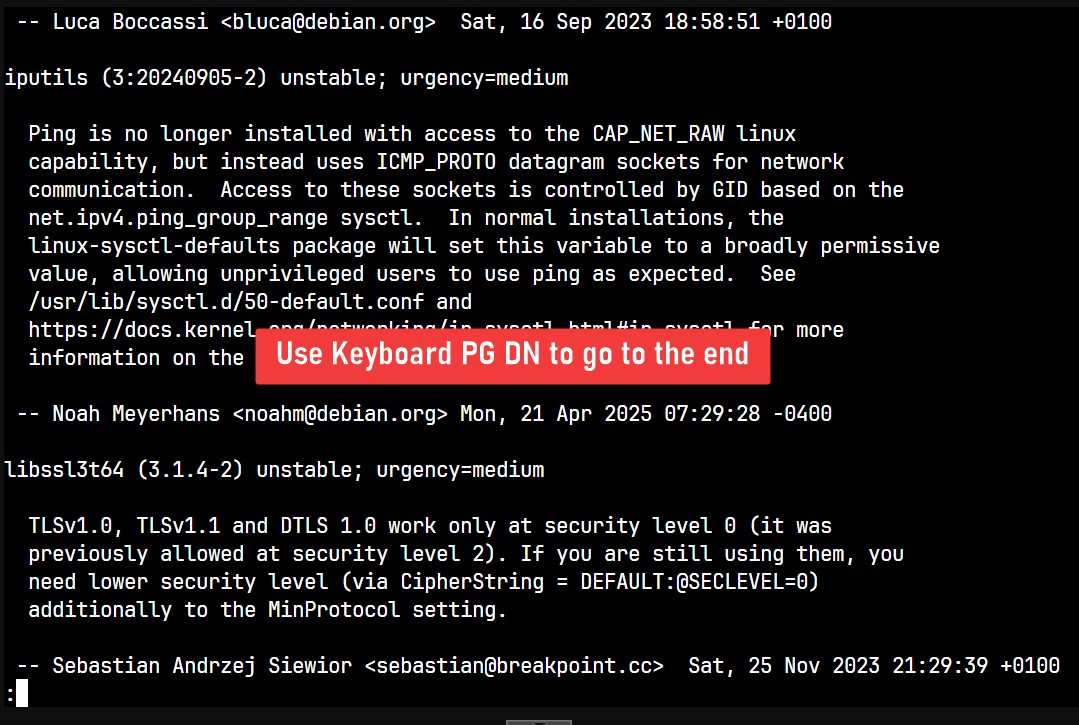
This process may show you additional screens. For example the below screen you can either PG DN multiple times, to go to the end or simply press q
⚠️ What Will Trip You Up
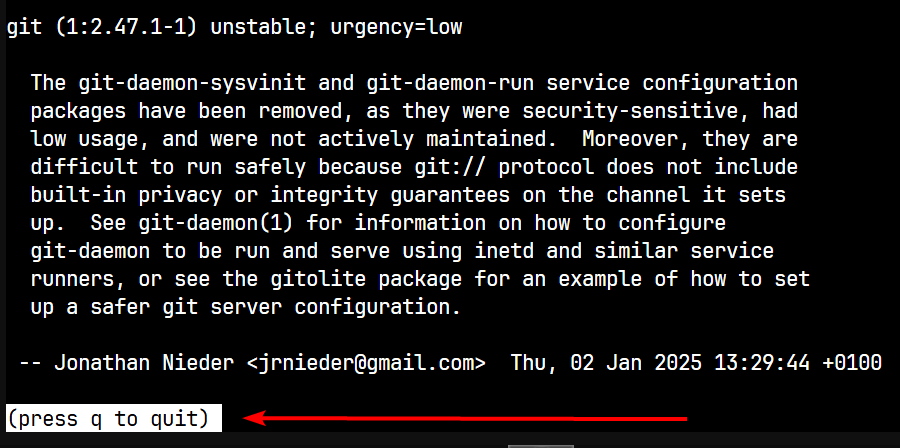
Pager screen
You’ll see: lines xx-xx (END)
Press: q
Config prompts
(Y/I/N/O/D/Z)
If unsure: → press Enter
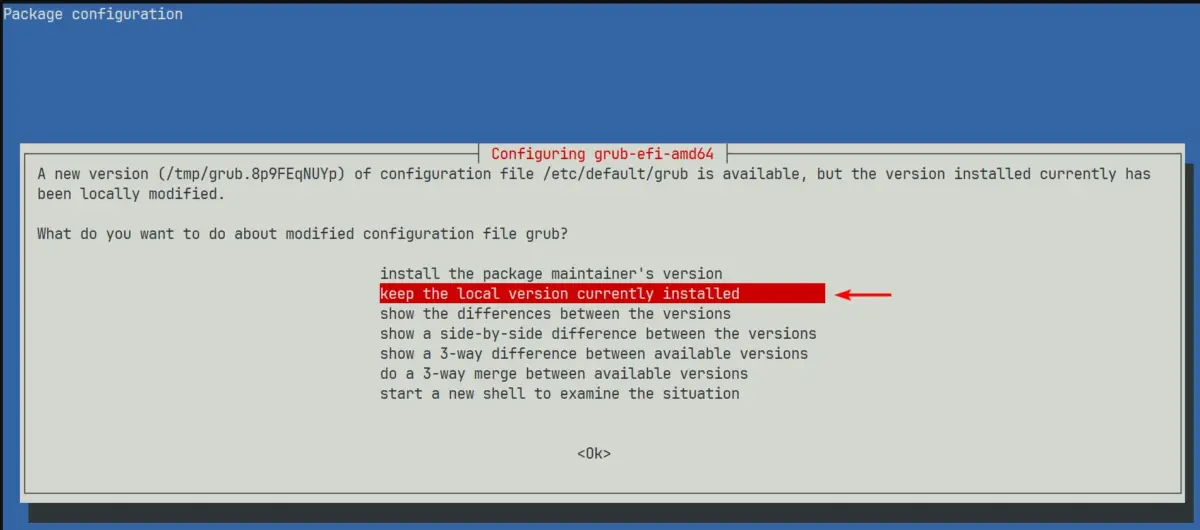
You may see other screens like this below, just keep the local version if you are not sure:
💥 If You Interrupt the Upgrade
Recovery
ps aux | grep apt
kill -9 <PID>
dpkg --configure -a
apt -f install
apt dist-upgrade
Repeat until clean.
✅ Phase 3 — Finalization
Check version
pveversion
This command should output something like this below, note the version number is 9.x.x.
root@pve2:~# pveversion
pve-manager/9.1.7/16b139a017452f16 (running kernel: 6.8.12-20-pve)
Reboot
reboot
Or you can just click on the UI.
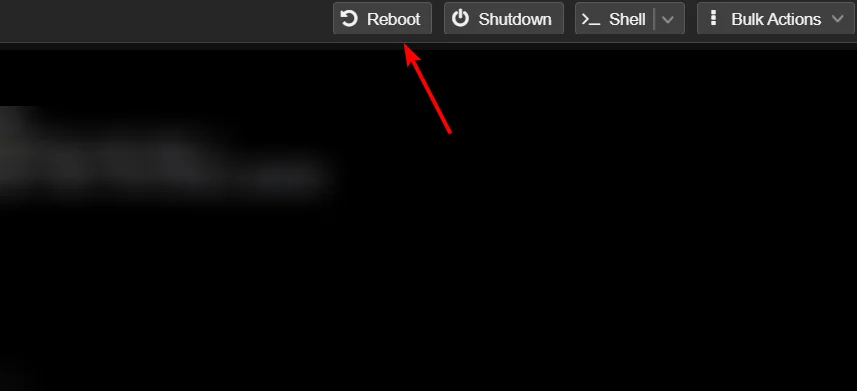
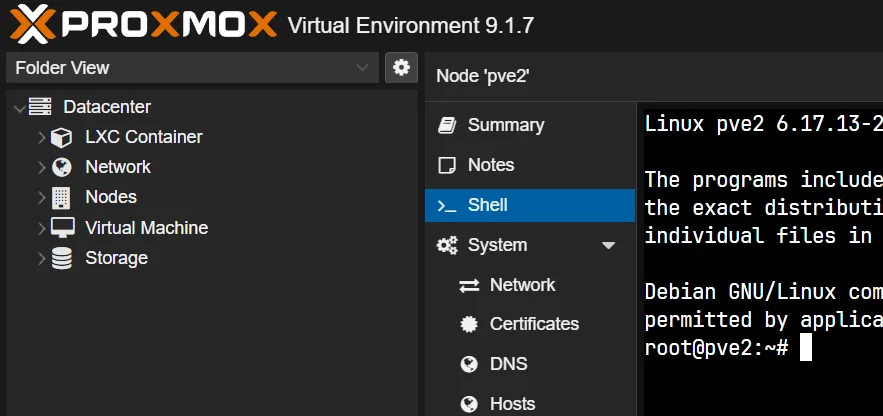
The reboot process will take some time. Once it is done, do not forget to force refresh your web access UI. (usually cmd+R or ctrl+R)
Confirm kernel
uname -r
⚠️ Important Change
/etc/sysctl.conf is no longer used
Move configs to: /etc/sysctl.d/
🔍 Post-Upgrade Checks
You should only do this if any of your VM is running plex and uses NVidia card passthrough.
GPU check
nvidia-smi
NVENC check
ffmpeg -encoders | grep nvenc
Real test
ffmpeg -f lavfi -i testsrc=duration=5:size=1280x720:rate=30 \
-c:v h264_nvenc -f null -
🧹 Cleanup
apt autoremove
apt modernize-sources
Example apt autoremove. Press Y to remove:
root@pve2:~# apt autoremove
REMOVING:
  libxenmisc4.17  proxmox-kernel-6.8.12-17-pve-signed

Summary:
  Upgrading: 0, Installing: 0, Removing: 2, Not Upgrading: 0
  Freed space: 579 MB

Continue? [Y/n] Y
Here is the example of apt modernize-sources. Press Y to continue.
root@pve2:~# apt modernize-sources

The following files need modernizing:
  - /etc/apt/sources.list
  - /etc/apt/sources.list.d/pve-enterprise.list
  - /etc/apt/sources.list.d/pvetest-for-beta.list

Modernizing will replace .list files with the new .sources format,
add Signed-By values where they can be determined automatically,
and save the old files into .list.bak files.

This command supports the 'signed-by' and 'trusted' options. If you
have specified other options inside [] brackets, please transfer them
manually to the output files; see sources.list(5) for a mapping.

For a simulation, respond N in the following prompt.
Rewrite 3 sources? [Y/n] Y

Modernizing /etc/apt/sources.list...
- Writing /etc/apt/sources.list.d/debian.sources

Modernizing /etc/apt/sources.list.d/pve-enterprise.list...

Modernizing /etc/apt/sources.list.d/pvetest-for-beta.list...🤦♂️Gotcha – apt modernize-sources
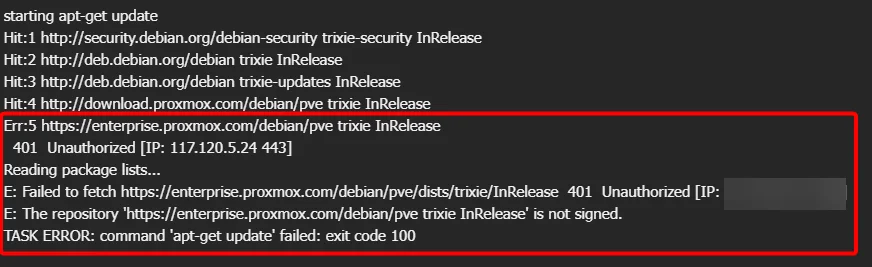
Be careful about the command
apt modernize-sources, this will add back the enterprise repo, and that will start to give you errors when runningapt-get updatecommand.
Now run these commands.
rm /etc/apt/sources.list.d/pve-enterprise.sources
rm /etc/apt/sources.list.d/pve-enterprise.list 2>/dev/null
Now test the apt update command. And it should be as you see below, without errors.
root@pve2:~# apt update
Hit:1 http://security.debian.org/debian-security trixie-security InRelease
Hit:2 http://deb.debian.org/debian trixie InRelease
Hit:3 http://deb.debian.org/debian trixie-updates InRelease
Hit:4 https://deb.nodesource.com/node_22.x nodistro InRelease
Hit:5 http://download.proxmox.com/debian/pve trixie InRelease
All packages are up to date. 🤦♂️Gotcha – Proxmox NAG Screen is Back?
This can happen in some occasion. You will notice the nag screen about Proxmox does not have a subscription notice. In this case use this one liner script from Proxmox Post Install Community Script. It is safe but as usual always inspect the source just to be sure.
Here is the one liner, you must run this inside PVE Shell (not inside a container).
bash -c "$(curl -fsSL https://raw.githubusercontent.com/community-scripts/ProxmoxVE/main/tools/pve/post-pve-install.sh)"Additional Instructions:
It is recommended to answer “yes” (y) to all options presented during the process. But use your best judgement as sometimes not all answer’s needs to be
Y.
🧠 Final Thought
You just need to follow the steps, be vigilant and it will be alright. If your upgrade depends on luck instead of control, then you’re doing it wrong 😊.