
Finding a project folder, opening a file, remembering an old command, checking a service. These are small jobs, but they happen all day in a terminal.
My NixOS configuration has a few tools to make those jobs easier. The useful part is how they work together. A file finder feeds a picker, the picker shows a preview, and a short shell function opens the selected file. Less typing, and you can see what you are choosing.
These are my five picks for a more useful NixOS terminal: fzf, zoxide, Atuin, eza and bat. I also use fd and ripgrep underneath the search helpers. Below is what each tool adds, how my wrapper commands work, and how to put the same idea into your own Zsh (opens in a new tab) configuration.
The five tools at a glance
| Tool | What it helps with | How I use it |
|---|---|---|
| fzf | Pick something from a searchable list | Files, project directories and services |
| zoxide | Jump back to directories you have visited | z nixos or zi |
| Atuin | Search command history with extra context | Ctrl+R |
| eza | Read directory listings and small trees | ll, la, lt |
| bat | Read code with highlighting and line numbers | File previews and bat shell.nix |
This is a personal selection from my configuration, rather than a benchmark ranking. You can use these tools in Ghostty, Alacritty, Kitty, Tabby or another terminal emulator. The shell configuration is the part that connects them.
1. fzf: choose instead of typing the whole path
fzf (opens in a new tab) is a fuzzy finder. Give it a list, type part of what you want, then select a result. You do not need to type every character in order without gaps.
In my setup, Ctrl+T inserts selected file or directory paths into the command line. It does not open an editor by itself. Alt+C picks a directory and changes into it. Files get a bat preview; directories get an eza tree preview.
For example, type nvim , press Ctrl+T, search for a filename, then accept the result. The path is inserted after nvim. Press Enter when the command is ready. And mouse interactions works too!
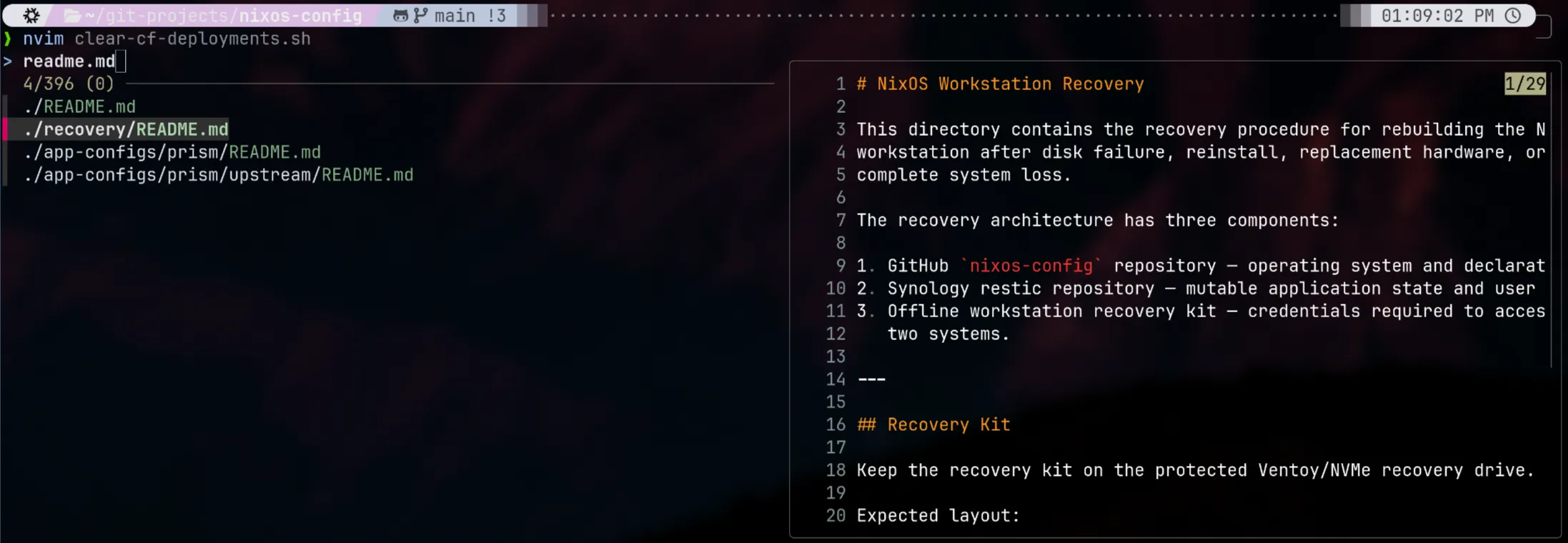
fzf is also the interface for the four wrappers further down. One selection habit, several everyday jobs.
2. zoxide: stop typing the same directory paths
zoxide (opens in a new tab) remembers directories you visit and ranks likely matches using how often and how recently you visit them.
Visit your project normally first:
cd ~/git-projects/nixos-configLater, from somewhere else:
z nixosIf there are several candidates, use its interactive selector:
zi nixosThe difference between this and my cproj wrapper matters. zoxide uses remembered locations. cproj scans the project directory now, so a newly cloned repository can appear before zoxide knows about it.
The directory database is personal application state. Keep the configuration in Git; back up the database separately if you want to preserve it across installations.
3. Atuin: find the command you already worked out
Atuin (opens in a new tab) keeps shell history in a local database with context such as the working directory and command result. That makes it useful when you remember what a command was for but cannot remember the flags.
Press Ctrl+R and search for something you have already run, such as nixos-rebuild or journalctl.
My shell initializes Atuin after fzf, so Atuin owns Ctrl+R. fzf keeps the file and directory shortcuts. That order is intentional: I want one history interface rather than wondering which tool will answer the same key.
Atuin also binds the up arrow by default. If you prefer the usual arrow-key history behavior, its initialization options (opens in a new tab) include --disable-up-arrow.
Installing and initializing Atuin does not set up a sync account. History can contain sensitive arguments, so keep its mutable data outside your public configuration repository.
4. eza: make directory listings easier to read
eza adds useful views such as directory grouping, Git information and a tree. My aliases save me from remembering the same options every time.
| Command | What my alias shows |
|---|---|
ls | Icons where appropriate, directories first |
ll | Long listing, readable sizes, header and Git information |
la | The same, including hidden entries |
l | One entry per line |
lt | A tree limited to two levels |
lt3 | A tree limited to three levels |
lm | A long listing sorted by modification time |
lsize | A long listing sorted by size in reverse order |
lt is particularly handy before editing a repository. Two levels usually show enough structure without filling the terminal with every dependency directory.
❯ lt .├── app-configs│ ├── dms-state│ ├── grub│ ├── helix│ ├── niri│ ├── niri-state│ ├── noctalia│ ├── noctalia-state│ ├── nvim│ ├── nvim-state│ ├── prism│ └── yazi├── docs│ ├── decisions│ ├── runbooks│ ├── worklog├── modules│ ├── apps│ └── desktop├── recovery│ ├── README.md│ └── restore.sh├── configuration.nix├── flake.lock├── flake.nix├── hardware-configuration.nix├── home.nix├── nanorc├── p10k.zsh├── packages.nix├── prettierrc.json├── README.md├── shell.nix├── statix.toml└── workstation.nixThese names are local aliases. Another machine’s ll may mean something different, or may not exist. In scripts, use the actual command and flags. In this Zsh setup, command ls bypasses the alias when you want the normal ls program.
5. bat: preview code before opening it
bat displays files with syntax highlighting and optional line numbers. I use it directly for a quick look:
bat shell.nixThe bigger benefit is inside fzf. Moving through a file list shows the beginning of each file without opening and closing an editor repeatedly.
The preview is deliberately bounded: 200 lines for the file picker and 300 for the content-search wrapper. It is a quick look at the file, not a promise that the matching line will be visible in the preview.
The supporting tools already in my configuration
The five tools above sit alongside other command-line helpers. This is the rest of the relevant shell and workstation inspection kit, rather than every application that happens to have a CLI.
| Tool or integration | Advantage and a starting point |
|---|---|
| fd | Supplies file and directory candidates; try fd --type f |
ripgrep (rg) | Searches file contents; try rg --fixed-strings 'services.' . |
| Yazi | Browse and manage files in the terminal; launch yazi |
| Zsh autosuggestions | Suggests previously used commands while typing |
| Zsh syntax highlighting | Gives visual feedback about the command being typed |
| Powerlevel10k | Adds prompt information, with its settings kept in p10k.zsh |
| Fastfetch | Shows a workstation summary; my startup hook runs it in Alacritty and Ghostty |
| btop / nvtop | Interactive system and NVIDIA GPU monitoring |
| jq | Select and transform JSON, for example jq '.name' package.json |
| lazygit / gh | A terminal Git interface and GitHub’s command-line client |
| nh / nix-output-monitor | A friendlier NixOS rebuild workflow and build-output tooling |
| nvd / nix-diff / nix-tree | Inspect package changes, derivation differences and dependency trees |
| nix-index / nix-locate | Build and query an index of files supplied by Nix packages |
| nix-search-cli | Search the package catalogue from the terminal |
| statix / deadnix / nixfmt / nil | Nix linting, unused-code checks, formatting and editor language support |
| just / pre-commit | Named project recipes and repository checks when the project configures them |
Yazi also has preview and archive helpers configured, including chafa, Poppler tools, ffmpegthumbnailer, ouch, zip and p7zip. Those support file-manager tasks rather than adding more shell shortcuts to memorize.
What the four wrapper commands do
A wrapper here is just a Zsh function combining existing commands. The name is short, but its behavior stays visible in shell.nix.
| Wrapper | Example | What happens |
|---|---|---|
cproj [query] | cproj nixos | Select an immediate subdirectory of ~/git-projects, preview Git status, then enter it |
fe [query] | fe shell | Filter filenames below the current directory, preview a file, then open it in Neovim |
frg [text] | frg services.openssh | Find files containing literal text, choose a file, then open its first matching line |
fsvc [--user] [query] | fsvc --user backrest | Select a loaded service, preview status, then read its journal for this boot |
fe searches names. frg searches contents. That is the distinction to remember.
Run bare frg to get a text prompt. Its search is literal: dots and brackets are ordinary characters, not regular expressions. It selects a matching file, not an individual search-result line.
fsvc lists loaded service units, including inactive ones. It does not enumerate every installed unit file. After selection, the journal command requests the latest 100 entries from the current boot; it is not a live log follower. Press q to leave the pager. Available logs depend on your journal permissions.
The file helpers include hidden paths and exclude .git, while still respecting ignore rules. An ignored file may therefore be absent. Escape cancels the picker; an empty initial result set exits it.
Why these functions are written this way
The project, file and text pickers pass filenames using NUL separators: --print0, --read0 and --null. This avoids splitting a path just because its name contains spaces or a newline. The selected path is quoted, and -- separates command options from filenames.
They use command substitution to capture fzf’s selection. The repository worklog records an earlier implementation that left fzf stopped by Zsh job control when it tried to access the terminal. Interactive terminal testing caught that; filtered picker tests had missed it. The current functions keep the selection in the foreground.
Also, these helpers explicitly open nvim. Changing EDITOR alone will not change their editor. If you prefer another editor, change those calls and adjust the line-number argument used by frg.
Add the tools declaratively on NixOS
This example assumes an existing NixOS configuration and a user who already uses Zsh. Installing Zsh does not change an existing user’s login shell by itself. In my repository, shell.nix is a NixOS module, not a development-shell definition.
Merge these assignments into your existing NixOS module. Add packages to your existing package list rather than creating a second assignment for it. The excerpt provides the five tools, their search dependencies and Neovim; the extra tools in the inventory are optional.
{ pkgs, ... }:{  programs.zsh.enable = true;
  environment.systemPackages = with pkgs; [    fzf zoxide atuin eza bat fd ripgrep neovim  ];
  programs.zsh.interactiveShellInit = ''    eval "$(fzf --zsh)"    eval "$(zoxide init zsh)"    eval "$(atuin init zsh)"
    alias ll='eza -lh --header --git --icons=auto --group-directories-first'    alias la='eza -lah --header --git --icons=auto --group-directories-first'    alias lt='eza --tree --level=2 --icons=auto --group-directories-first'  '';}
If you already initialize any of these tools through Home Manager, keep one owner for that initialization. Do not initialize them a second time here.
Add previews and the wrappers
The following is Zsh code. Add it inside the existing programs.zsh.interactiveShellInit string, before eval "$(fzf --zsh)". When embedding it in Nix’s indented string, write each shell ${...} expansion as ''${...} so Nix leaves it for Zsh to expand. The $() substitutions do not need that escape.
Change "$HOME/git-projects" if your repositories live somewhere else. The directory must exist before you use cproj.
export FZF_CTRL_T_COMMAND='fd --hidden --exclude .git --print0'export FZF_CTRL_T_OPTS="--read0 --preview 'if test -d {}; then eza --color=always --tree --level=2 -- {}; else bat --color=always --style=numbers --line-range=:200 -- {}; fi'"export FZF_ALT_C_COMMAND='fd --type d --hidden --exclude .git --print0'export FZF_ALT_C_OPTS="--read0 --preview 'eza --color=always --tree --level=2 -- {}'"# Select a project, including projects not yet remembered by zoxide.cproj() {  local dir  dir=$(    fd --type d --max-depth 1 --print0 . "$HOME/git-projects" |      fzf --read0 --print0 --no-multi --exit-0 --query="$*" --prompt='Project> ' \        --preview 'git -C {} -c color.status=always status --short --branch'  ) || return 0  dir="${dir%$'\0'}"  cd -- "$dir"}
# Find and edit a file; Escape leaves the shell unchanged.fe() {  local file  file=$(    fd --type f --hidden --exclude .git --print0 |      fzf --read0 --print0 --no-multi --exit-0 --query="$*" --prompt='Edit> ' \        --preview 'bat --color=always --style=numbers --line-range=:200 -- {}'  ) || return 0  file="${file%$'\0'}"  nvim -- "$file"}
# Search literal text, select a matching file, and open its first match.frg() {  local file line query="$*"  if [[ -z "$query" ]]; then    read -r "query?Text to find: " || return 0    [[ -n "$query" ]] || return 0  fi  file=$(    rg --files-with-matches --null --fixed-strings --hidden --glob '!.git' -- "$query" . |      fzf --read0 --print0 --no-multi --exit-0 --prompt='Matching file> ' \        --preview 'bat --color=always --style=numbers --line-range=:300 -- {}'  ) || return 0  file="${file%$'\0'}"  line=$(rg --line-number --no-heading --color=never --fixed-strings --max-count 1 -- "$query" "$file")  line="${line%%:*}"  [[ "$line" == <-> ]] || return 1  nvim "+$line" -- "$file"}
# Inspect services and their latest logs; use --user for Home Manager services.fsvc() {  local unit scope=""  local -a scope_args  scope_args=()  if [[ "$1" == --user ]]; then    scope='--user'    scope_args=(--user)    shift  fi  unit=$(systemctl "${scope_args[@]}" list-units --type=service --all --plain --no-legend --no-pager |    awk '{print $1}' |    fzf --no-multi --query="$*" --prompt='Service> ' \      --preview "systemctl $scope status --no-pager --full -- {}") || return 0  [[ -n "$unit" ]] || return 0  journalctl "${scope_args[@]}" --unit="$unit" --boot --lines=100}
Build, activate and check a fresh terminal
For a flake configuration, run these from your configuration repository. Replace YOUR_HOST with the name under nixosConfigurations in your flake. The first command builds without activating; the second activates and updates the boot default.
sudo nixos-rebuild build --flake .#YOUR_HOSTsudo nixos-rebuild switch --flake .#YOUR_HOSTIf a new module file is untracked in a Git-backed flake, add that file to Git’s index before building so the flake can see it. Review what you stage.
Open a fresh Zsh terminal. Check the commands and then try the interactive parts:
command -v fzf zoxide atuin eza bat fd rgwhence -w cproj fe frg fsvcllcprojThe first check should show executable paths; the second should identify four functions. Then try Ctrl+T, Alt+C, Ctrl+R, fe, and a literal text search inside a small repository. A missing history result can simply mean Atuin has not recorded that command yet.
I checked the current configuration and confirmed that the eight core executables, including nh, resolve on this workstation. The shell binding check also showed Atuin owns Ctrl+R. Earlier repository tests exercised interactive project/file selection and the prompted text search, with the editor stubbed to avoid modifying files. This article does not claim a fresh rebuild or a new end-to-end test of every tool.
To undo the setup, remove the added initialization, functions, aliases and package entries, rebuild, and open a fresh terminal. Removing a package declaration does not delete its history database.
My NixOS maintenance shortcuts, explained before you use them
These are specific to my repository path and flake output. They are not built-in NixOS commands.
| Shortcut | What it actually runs or does |
|---|---|
ng | Lists system generations with nix-env |
nd | Uses nvd diff between the fixed system-1-link profile and the running system; this is not dynamically “the previous generation” |
nvl | Lists packages in the running system with nvd list |
nidx | Calls nix-locate; an index must be available |
ncheck | Runs statix check . in the current directory |
ndead | Runs deadnix . in the current directory |
nt | Runs sudo nixos-rebuild test against my workstation flake |
ns | Runs nh os switch against my repository and its nixos output |
nixcfg | Enters the config repo, shows status, stages everything below it, prints the staged diff, then runs nixos-rebuild test |
nixcommit "message" | Enters the config repo, stages everything below it, commits with that message, then pushes |
There are also two plain navigation aliases: .. goes up one directory and ... goes up two.
My normal configuration workflow is:
nixcfgns# Check the live behavior before committing.nixcommit "feat(shell): add terminal helpers"nixcfg is a short name with a significant action behind it. nixos-rebuild test builds and activates the configuration for the current session, without making it the boot default. Use nixos-rebuild build when you only want a build. ns makes the switch persistent for future boots.
nixcommit does not run validation and does not ask before pushing. Both functions use git add ., so unrelated edits or newly created files can be staged too. Review the repository before using them. These wrappers reduce repeated typing; they do not replace reviewing the changes.
Start with Ctrl+R for a command you forgot, z for a directory you know, and fe for a file you need to open. Once those become familiar, the other shortcuts have somewhere useful to fit.
Comments