
I had been looking at Niri while testing CachyOS. It gave me the satisfaction of a calm, keyboard-friendly Wayland desktop, and that thought stuck with me.
Over the last few weeks, I kept thinking about one practical question: How could I rebuild this workflow from my NixOS configuration with DMS and Niri, without recreating the same problems along the way?
Niri is the compositor; it decides where windows live. DankMaterialShell (opens in a new tab), usually shortened to DMS, is the friendly layer around it: panel, launcher, notifications, settings, lock screen integration, wallpaper colors, tray, and a growing set of desktop conveniences.
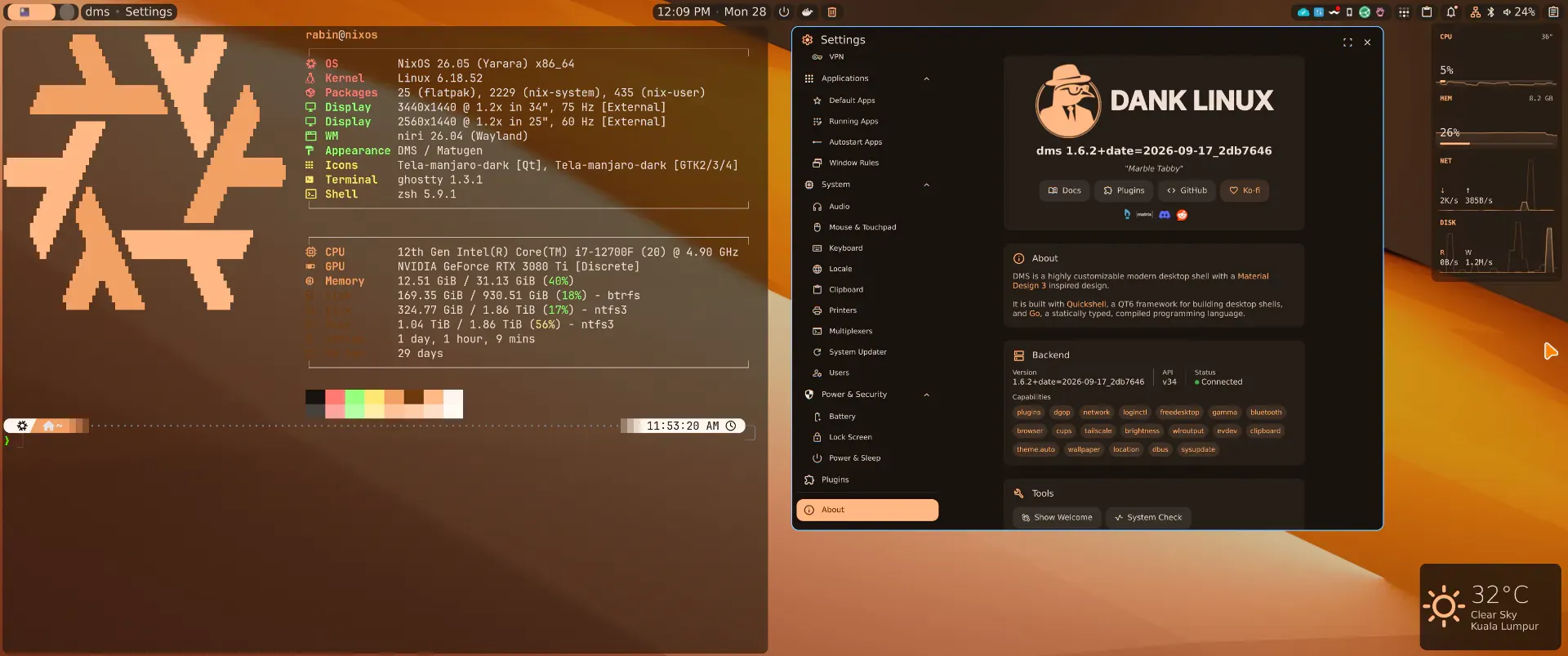
This is the path I used to move from a conventional Plasma desktop to Niri and DMS, then to the upstream DMS 1.6.2 release and matching greeter. It is, by purpose, a step-by-step process.
The important lesson is not a particular theme or monitor layout; it is keeping the change reversible while you find out whether the workflow actually fits you.
The shape of the desktop
flowchart TB A["📦 NixOS config"] --> B["🪟 Niri"] A --> C["✨ DMS"] A --> D["🔐 Greeter"] B --> E["🖥️ Session"] C --> E D --> E C --> F["📌 Panel + tray"] C --> G["🎨 Colors"] B --> H["⌨️ KDL config"] C --> I["⚙️ UI state"]There are two kinds of configuration here:
- NixOS/Home Manager owns the reproducible foundations: packages, the Niri service, the DMS service, portals, keybindings, and the login path.
- DMS owns things a person naturally changes in a settings window: wallpaper-derived colors, cursor selection, panel layout, and some generated Niri fragments.
Trying to make every DMS click immutable is where things get unpleasant. Let DMS own its UI state, but choose a careful way to back up or mirror the useful parts.
Before changing anything, make rollback easy
My first Niri/DMS configuration kept Plasma installed and selectable at the login screen. That let me test Niri for normal work without risking the whole machine on day one.
For a new setup, I would do these first:
- Commit your current NixOS configuration.
- Make sure you know how to choose an older NixOS generation from the boot menu.
- Keep your existing desktop session enabled for the first few logins.
- Do not combine the desktop move with bootloader, GPU-driver, filesystem, or network changes.
Step 1: enable Niri and a small DMS trial
NixOS has a native Niri module. The DMS option name depends on which module you use: older nixpkgs packaging used programs.dms-shell, while the upstream 1.6.2 module uses programs.dank-material-shell.
For an initial trial using the package available in your pinned NixOS release, the shape is simple:
{ lib, ... }:{  programs.niri.enable = true;
  programs.dms-shell = {    enable = true;    enableDynamicTheming = false;    systemd.target = "niri.service";  };
  # Keep DMS tied to the Niri session, not a different desktop session.  systemd.user.services.dms = {    after = [ "niri.service" ];    requisite = [ "niri.service" ];    partOf = lib.mkForce [ "niri.service" ];    unitConfig.ConditionEnvironment = "XDG_CURRENT_DESKTOP=niri";  };}
I initially left dynamic theming off. That reduced the number of moving parts while I checked the boring-but-important things: launchers, notifications, the tray, lock/unlock, screen sharing, audio, file pickers, and applications that need a secret store.
Log out, choose the Niri session, and use it for real work. Fix one missing workflow at a time. For me, that meant replacing Plasma-oriented defaults with Nautilus, Loupe, Papers, File Roller, Ghostty, and Niri-native screenshot tools only after each one had passed a live test.
Step 2: keep Niri configuration in the repository
Niri’s configuration is KDL. I keep a small main file that includes focused files for displays, input, bindings, layout, and window rules:
include "./cfg/keybinds.kdl"include "./cfg/input.kdl"include "./cfg/display.kdl"include "./cfg/layout.kdl"include "./cfg/rules.kdl"Home Manager can validate and install that complete tree:
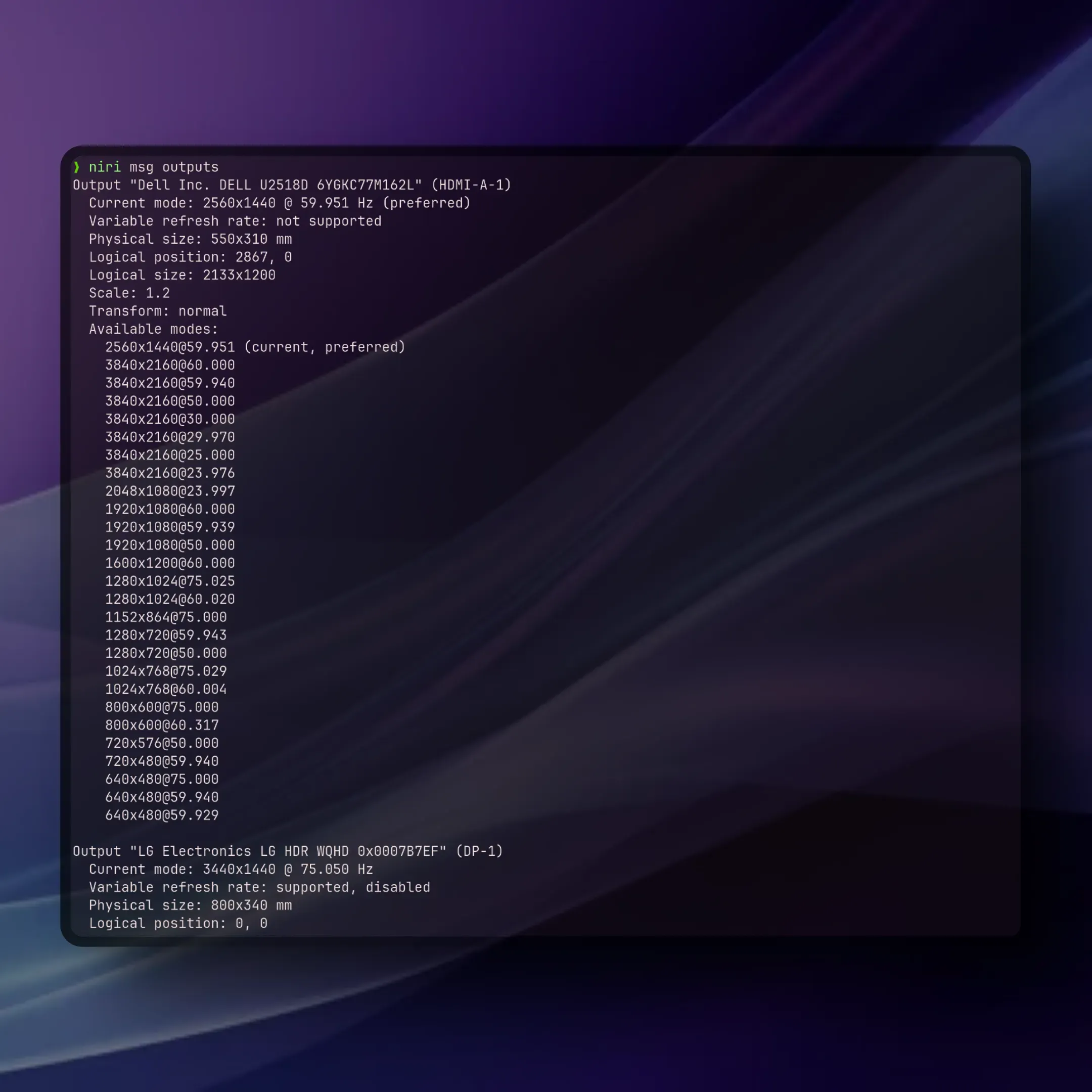
xdg.configFile."niri" = { source = pkgs.runCommand "niri-config" { nativeBuildInputs = [ pkgs.niri ]; } '' niri validate --config ${./app-configs/niri}/config.kdl cp -r ${./app-configs/niri} $out ''; recursive = true; force = true;};Use niri msg outputs on your own machine before writing output rules. A dual-monitor layout is hardware-specific, so a safe first configuration can omit it entirely and let Niri use its defaults.
Step 3: add DMS-managed Niri fragments safely
DMS can generate extra Niri fragments for settings it manages itself, such as cursor, bindings, layout, Alt-Tab, or wallpaper blur. Keep those includes optional so a new installation can start before DMS has generated anything:
// Your declarative files above...
// DMS creates these after its first run.include optional=true "/home/your-user/.config/niri/dms/binds.kdl"include optional=true "/home/your-user/.config/niri/dms/cursor.kdl"include optional=true "/home/your-user/.config/niri/dms/layout.kdl"include optional=true "/home/your-user/.config/niri/dms/windowrules.kdl"
The absolute paths are intentional. When Home Manager installs the main file from the Nix store, a relative include resolves relative to that immutable store path - not the writable DMS directory in your home folder.
Step 4: decide how to handle colors, icons, and Qt
Once the basic session was stable, I enabled DMS dynamic theming. DMS uses Matugen to derive a palette from the wallpaper and writes the generated colors for the shell and supporting applications.
With upstream DMS 1.6.2, this is the relevant part:
programs.dank-material-shell = {  enable = true;  enableDynamicTheming = true;  enableCalendarEvents = false;  systemd = {    enable = true;    target = "niri.service";  };};
systemd.user.services.dms.serviceConfig.Environment =  "QT_QPA_PLATFORMTHEME=qt6ct";
I installed qt6ct and a normal GTK/icon baseline, then let DMS/Matugen manage the generated palette. The exact icon theme is personal taste. What matters is using the same icon directory name consistently across DMS, GTK, and Qt if you decide to synchronize it.
Do not turn on dynamic theming until you are happy with the basic session. It is excellent when it works, but it changes more surfaces, so it makes early troubleshooting noisier.
Step 5: keep the login and secrets changes separate
A compositor switch, a displayManager switch, and a keyring switch are three different migrations. I learned to test them in that order rather than rolling them into one massive rebuild.
The final setup uses the DMS Greeter through greetd, starts Niri, and lets PAM unlock GNOME Keyring at login:
services.displayManager.defaultSession = "niri";
users.groups.dms-greeter = { };users.users.dms-greeter = {  isSystemUser = true;  group = "dms-greeter";};
services.greetd.settings.default_session.user = "dms-greeter";programs.dms-greeter = {  enable = true;  compositor.name = "niri";};
services.gnome.gnome-keyring.enable = true;security.pam.services.greetd.enableGnomeKeyring = true;xdg.portal.config.niri."org.freedesktop.impl.portal.Secret" =  lib.mkForce "gnome-keyring";
Your hardware may need a custom greeter compositor configuration for displays and scaling. Keep it minimal, and test a cold boot before declaring victory.
Step 6: upgrade deliberately to upstream DMS 1.6.2
My NixOS package was still on an older DMS generation, so I pinned the upstream 1.6.2 shell and the matching 1.6.2 greeter. Pinning both tags matters: a login component and shell built from unrelated revisions are an unnecessary compatibility gamble.
inputs = {  nixpkgs.url = "github:NixOS/nixpkgs/nixos-26.05";
  dms = {    url = "github:AvengeMedia/DankMaterialShell/v1.6.2";    inputs.nixpkgs.follows = "nixpkgs";  };
  dms-greeter = {    url = "github:AvengeMedia/dank-greeter/v1.6.2";    inputs.nixpkgs.follows = "nixpkgs";  };};
Pass the inputs to the system and import their modules before your normal configuration module:
outputs = { nixpkgs, dms, dms-greeter, ... }: { nixosConfigurations.my-host = nixpkgs.lib.nixosSystem { system = "x86_64-linux"; modules = [ dms.nixosModules.dank-material-shell dms-greeter.nixosModules.dank-greeter ./configuration.nix ]; };};Then use the upstream option, replacing - not layering on top of - the old DMS declaration:
programs.dank-material-shell = { enable = true; enableDynamicTheming = true; systemd = { enable = true; target = "niri.service"; };};I tested this first in a NixOS specialization while leaving the known-good desktop and greeter in place. The final promotion only happened after DMS startup, screenshots, clipboard/paste, settings, tray, login, cold boot, and suspend/resume all worked.
flowchart TB A["✅ Working gen"] --> B["📌 Pin 1.6.2"] B --> C["🧪 Test build"] C --> D["🖥️ Daily test"] D --> E{"✅ All good?"} E -->|"No"| F["↩️ Roll back"] E -->|"Yes"| G["🚀 Finalize"]Step 7: make UI state recoverable without committing secrets
DMS writes real files as you change its settings. It also performs atomic writes, which is an important technical detail: a writable symlink can be replaced by a new ordinary file. I therefore do not ask DMS to write directly into a Git-managed symlink.
Instead, a small Home Manager user service copies approved files back into the checkout whenever they change:
systemd.user.paths.dms-ui-state-sync = { Path = { PathChanged = [ "%h/.config/DankMaterialShell/settings.json" "%h/.config/niri/dms" ]; Unit = "dms-ui-state-sync.service"; }; Install.WantedBy = [ "graphical-session.target" ];};The companion one-shot service can copy only the files you have reviewed - for example settings.json and generated *.kdl fragments - into a tracked app-configs/dms-state/ directory. On activation, copy a saved file back only when the live file is absent, so DMS remains free to update it normally.
Do not mirror everything blindly. I explicitly leave these out:
- plugin settings, because a plugin can store an API key, account data, or a private path;
- caches, logs, and changelogs;
- application databases and browser/keyring state.
Step 8: start autostart applications after the tray exists
Some applications start too early and miss the DMS tray host. DMS settings can generate an override for this; the declarative equivalent is tiny:
[Unit] After=dms.service'';That drop-in orders applications started by systemd-xdg-autostart-generator after DMS. It is a useful small fix when a tray-capable app works when launched manually but is missing after login.
How do I verify this?
After each meaningful change, I use this order:
# In the configuration checkoutnix flake check --no-buildniri validate --config app-configs/niri/config.kdl
# Build/test and switch using your normal host workflow.sudo nixos-rebuild test --flake .#my-hostsudo nixos-rebuild switch --flake .#my-host
Then I verify the live system, not just the build:
- log out and back into Niri;
- use the launcher, panel, notification, and tray;
- open a browser and check the secret store still unlocks correctly;
- take whole-screen, region, and window screenshots;
- check a portal-dependent action such as screen sharing or a file chooser;
- reboot once, then test suspend/resume;
- inspect
systemctl --user --failedand the DMS journal if anything is odd.
If a test fails, boot the last working generation and make the next change smaller. NixOS makes rollback unusually simple; the trick is preserving a known-good generation long enough to use it.
Where I end up
Niri and DMS are now my day-to-day desktop, with DMS and the greeter both pinned to upstream 1.6.2. The setup feels coherent because Niri handles the window workflow, DMS handles the desktop surface, and NixOS/Home Manager describes the parts that should survive a clean rebuild.
The informal rule I would give a new NixOS user is this: make the desktop workable first before making it pretty, and make it reversible before making it permanent.
Once the login path, keyring, screenshots, tray, portals, and suspend behavior are working as expected, then the colors and plugins become the fun part.
Comments