
I wanted to try Vicinae (opens in a new tab) without giving up the launcher I already use.
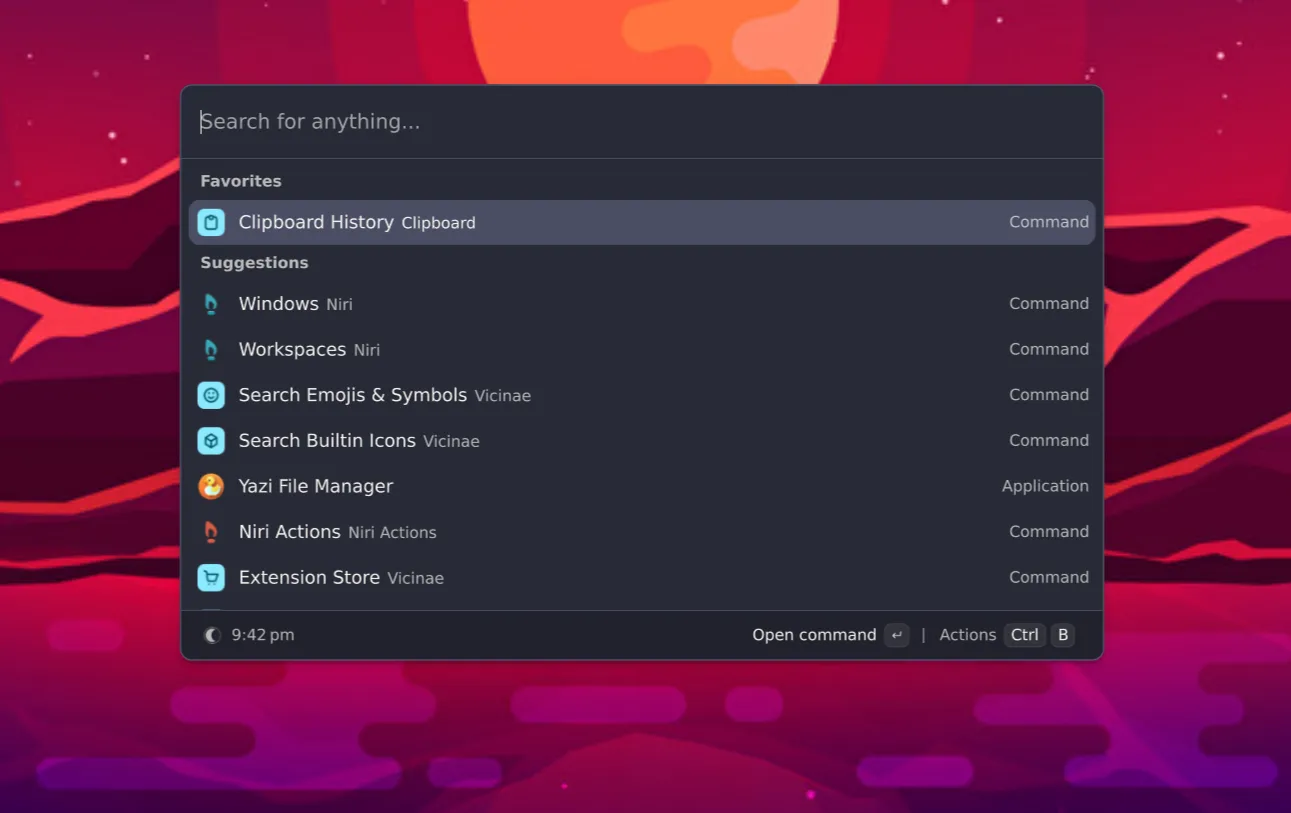
My daily desktop is Niri with Noctalia. It already handles the panel, notifications, clipboard, and application launcher. Vicinae caught my attention because it puts applications, calculations, files, and extensions behind one searchable interface.
The plan was simple: give Vicinae its own shortcut, use it for a few days, and see whether I naturally reach for it. If that happens, I can swap the shortcuts later.
For the trial, the arrangement is:
| Shortcut | Action |
|---|---|
| Mod+Space | Keep opening Noctalia’s launcher |
| Mod+Alt+Space | Toggle Vicinae |
| Mod+V | Keep opening Noctalia’s clipboard |
On my Niri setup, Mod is the Super/Windows key. If you have configured a different modifier, use that instead.
This guide explains how I made that choice reproducible: one switch in workstation.nix, one feature module, a discoverable package declaration, and a conditional Niri binding.
Before you start
This guide assumes you already have:
- A working NixOS configuration managed with flakes.
- Home Manager integrated into NixOS through
home-manager.nixosModules.home-manager. - A working Niri session, with its existing configuration kept in your repository.
- A normal user account managed through
home-manager.users.
If you are starting with the desktop itself, read my Niri and DankMaterialShell walkthrough first. Installing a launcher should not require rebuilding your entire desktop arrangement.
The examples use your-user for the account name and nixos for the flake’s host output. Replace those with your own values. Run the commands from the root of your NixOS configuration repository.
My checked combination on October 2026 was Vicinae 0.23.2 from my pinned Nixpkgs and Home Manager’s release-26.05 input. The upstream Vicinae flake has its own Home Manager module, whose options can be different. This guide uses the module already supplied by Home Manager.
What each file owns
The modular approach is useful because the pieces have different jobs.
| File | Responsibility |
|---|---|
workstation.nix | Decide whether the Vicinae trial is enabled |
modules/apps/vicinae.nix | Define the option and coordinate the user service |
packages.nix | Select the Vicinae package |
modules/desktop/home-niri.nix | Generate and validate the conditional Niri shortcut |
home.nix | Import the Niri Home Manager module |
The relevant layout looks like this:
nixos-config/
- flake.nix
- configuration.nix
- workstation.nix
- packages.nix
- home.nix
modules/
apps/
- vicinae.nix
desktop/
- home-niri.nix
app-configs/
niri/
- config.kdl
cfg/
- keybinds.kdl
You do not need a new module for every application. This one earns its place because enabling Vicinae coordinates installation, a background service, and compositor configuration. Turning it off should undo those contributions together.
Step 1: check the package in your pinned configuration
Before adding another flake input, check what your existing Nixpkgs already provides:
nix eval --raw .#nixosConfigurations.nixos.pkgs.vicinae.versionMy output was 0.23.2.
If the attribute is missing in your pinned revision, stop here and check package availability for that revision. Do not copy an option from a newer module and assume your current Home Manager supports it.
The official NixOS documentation (opens in a new tab) also describes using Vicinae’s own flake and binary cache. That is another route, but my pinned package was already available. I did not need an extra input or another trusted cache for this trial.
An ordinary rebuild keeps using the package selected by flake.lock. Updating that lock is a separate decision; this installation does not require updating all your inputs.
Step 2: create the Vicinae feature module
Create modules/apps/vicinae.nix:
{ config, lib, ... }:
{  options.workstation.apps.vicinae.enable = lib.mkEnableOption    "Vicinae alongside the desktop shell, with a separate Niri shortcut";
  config = lib.mkIf config.workstation.apps.vicinae.enable {    home-manager.users."your-user" = { config, pkgs, ... }: {      programs.vicinae = {        enable = true;        systemd.enable = true;        # Keep settings.json writable for GUI and extension preferences.      };
      # Audio commands use pactl even when the audio server is PipeWire.      systemd.user.services.vicinae.Service.ExecStart = lib.mkForce        (toString (pkgs.writeShellScript "vicinae-start" ''          export PATH=${lib.makeBinPath [ pkgs.pulseaudio ]}:"$PATH"          exec ${lib.getExe config.programs.vicinae.package} server        ''));    };  };}
There are a few Nix details worth understanding before moving on:
mkEnableOptiondeclares a boolean option that defaults tofalse.mkIfcontributes the enclosed configuration only when that option is enabled.programs.vicinae.enablelets Home Manager install the selected package.systemd.enablecreates the user service. In the checked module, automatic startup defaults to enabled and followsgraphical-session.target.
The two config arguments belong to different module scopes. The outer one reads the NixOS feature switch. The inner one reads Home Manager’s selected Vicinae package. That is why the start script uses config.programs.vicinae.package.
Why the additional small start script?
My first service run reported that pactl was missing, so Vicinae’s audio commands would not work.
The script adds the package containing that client utility to Vicinae’s PATH, while preserving the inherited session paths. lib.mkForce replaces the Home Manager module’s default start command with this wrapper.
Despite the package name, using pkgs.pulseaudio for its pactl executable does not enable a PulseAudio daemon. My workstation still uses PipeWire. The utility talks to its PulseAudio-compatible interface.
This also gives the wrapper a clear owner. I do not need to put a risk of private startup command in .zshrc and hope that a GUI user service reads it.
Step 3: keep the package choice in packages.nix
My package catalogue lives in packages.nix, so I keep the selected package there:
{ pkgs, ... }:
{  # Home Manager installs this package when the feature is enabled.  home-manager.users."your-user".programs.vicinae.package = pkgs.vicinae;
  # Keep your existing package declarations here.}
If your file already has a module argument list and an attribute set, add the assignment inside that existing set. Do not add a second { pkgs, ... }: header halfway through the file.
Setting the package option selects which package to use. It does not enable the program. The feature module still controls that.
There is no need to add Vicinae to environment.systemPackages as well. Home Manager owns its installation in this arrangement.
The Nixpkgs package I checked also wraps the executable with Node.js in its runtime path. That matters for extensions later; I did not need to guess whether a systemd service would inherit Node from my terminal.
Step 4: enable it from workstation.nix
Create or extend the central selection file:
{ ... }:
{  imports = [    ./modules/apps/vicinae.nix  ];
  workstation.apps.vicinae.enable = true;}
Then make sure your existing configuration.nix imports the selection file and package catalogue:
imports = [ ./packages.nix ./workstation.nix];Keep your other imports, including hardware-configuration.nix. If these files are already imported, do not add them again. Import the feature module once, through workstation.nix.
Your flake must also already connect the NixOS Home Manager module to the same account. Inside its NixOS module list, the relevant existing setup looks like this:
modules = [ ./configuration.nix home-manager.nixosModules.home-manager { home-manager.useGlobalPkgs = true; home-manager.useUserPackages = true; home-manager.users."your-user" = import ./home.nix; }];That home-manager name comes from your existing flake input. This fragment is not a replacement for the rest of flake.nix.
At this point, the feature can install and start Vicinae. The next step gives it a keyboard shortcut.
Step 5: add Mod+Alt+Space without replacing your launcher
Vicinae relies on the compositor for global keyboard shortcuts. In Niri, the binding itself is small:
binds { Mod+Alt+Space { spawn "vicinae" "vicinae://toggle"; }}I generate that block only when the feature is enabled. This avoids leaving a dead shortcut behind after disabling the application.
Here is a minimal modules/desktop/home-niri.nix for a configuration whose existing Niri files live under app-configs/niri/:
{ lib, pkgs, osConfig, ... }:
lib.mkIf osConfig.programs.niri.enable {  xdg.configFile."niri" = {    source = pkgs.runCommand "niri-config" {      nativeBuildInputs = [ pkgs.niri ];    } ''      cp -r ${../../app-configs/niri} $out      chmod -R u+w $out
      ${lib.optionalString osConfig.workstation.apps.vicinae.enable ''        cat >> $out/config.kdl <<'KDL'      // Secondary launcher trial; keep the existing Mod+Space binding.      binds {          Mod+Alt+Space { spawn "vicinae" "vicinae://toggle"; }      }      KDL      ''}
      niri validate --config $out/config.kdl    '';    recursive = true;  };}
osConfig is supplied by the NixOS-integrated Home Manager setup. It lets this Home Manager module read the NixOS feature switch. A standalone Home Manager configuration needs the setting passed in another way; this example is for the integrated setup described above.
The build copies the existing Niri directory, appends the optional binding, then validates the resulting KDL. The ../../ path goes from modules/desktop/ back to the repository root.
The source directory must already contain your working config.kdl and its included files. Keep any existing desktop-profile substitutions or other generation steps in your real module. If you already manage xdg.configFile."niri".source, merge the conditional append block into that generator rather than declaring a competing source.
Import the module from your existing home.nix:
imports = [ ./modules/desktop/home-niri.nix];Check your other bindings before rebuilding. A second declaration of Mod+Alt+Space must be resolved, not left for the compositor to guess. On my workstation, it was unused; Noctalia’s Mod+Space and Mod+V stayed where they were.
Step 6: build first, then activate
Flakes backed by Git need new files tracked before normal .#... evaluation can see them. Stage the intended additions after reviewing your diff:
git status --shortgit diffgit add workstation.nix packages.nix configuration.nix home.nix \ modules/apps/vicinae.nix modules/desktop/home-niri.nixUse your actual changed paths. Staging does not create a commit, and there is no need to include unrelated work.
Then evaluate and build:
nix flake check --no-buildnix build --no-link .#nixosConfigurations.nixos.config.system.build.toplevelThe generated Niri configuration is part of that build, so an invalid shortcut or KDL include should fail before activation.
When the build passes, test the configuration on the running system, then make it persistent:
sudo nixos-rebuild test --flake .#nixossudo nixos-rebuild switch --flake .#nixostest does activate the configuration for the current running system; it does not make it the boot default. switch activates it and updates the boot default. Neither is just a syntax check.
On my workstation, I use my existing nixcfg and ns helpers for that workflow. Those are local conveniences, not commands every NixOS installation has.
Step 7: verify the launcher and extension runtime
After activation, check the user service without sudo:
systemctl --user is-active vicinae.servicevicinae versionvicinae pingThe service should report active, and the ping should succeed.
Now press Mod+Alt+Space. Vicinae should open. Press it again to close it, then confirm Mod+Space still opens your original launcher.
If the shortcut does nothing, separate the two possibilities:
vicinae togglejournalctl --user -u vicinae.service -b --no-pager -n 60If the terminal command works, inspect the active Niri configuration and shortcut. If it fails too, start with the service log. For a missing session environment, check that the user service manager received WAYLAND_DISPLAY from your Niri login; a command working in an interactive shell does not prove a background service has the same environment.
Can you use extensions on NixOS?
Yes. Open the Vicinae extension store from the launcher, or use the command available in my checked version:
vicinae cmd launch core:storeInstall one extension you actually want and test its main action. Start with something that does not need an account so you can check the runtime separately from authentication.
Vicinae has its own extensions and supports many Raycast extensions, with compatibility varying by extension. A macOS-specific dependency can still prevent a Raycast extension from working. See the upstream extension overview (opens in a new tab).
The Vicinae FAQ (opens in a new tab) specifies Node.js 20 or newer for third-party extensions. My package started the extension manager with Node.js 24.21.0. That proves the runtime started; an installed extension still needs its own check.
I would only make a useful extension declarative after trying it. API tokens, OAuth state, and account preferences stay outside Git and out of literal Nix settings that enter the store.
Step 8: let the trial settings stay writable
It is tempting to put every preference into programs.vicinae.settings immediately. I left that option unset for the trial.
The Home Manager module I checked (opens in a new tab) writes non-empty settings directly to ~/.config/vicinae/settings.json. That produces a Nix-managed file, while Vicinae expects to save GUI changes to its main settings file.
Leaving it unset lets Vicinae create a normal writable file. I can change the theme, configure an extension, and decide which preferences are worth keeping before declaring them permanently.
The newer upstream module has different configuration handling. Do not assume that its example options exist in your pinned Home Manager module. For declarative defaults later, check the supported import/override mechanism for your chosen versions and keep the main GUI settings writable.
There is also one Niri detail to watch: the default layer-shell layer can put the launcher behind a fullscreen application. If that happens, the relevant preference is:
{ "launcher_window": { "layer_shell": { "layer": "overlay" } }}This is a fragment to merge into the existing object, not a replacement for the entire file. Check input-method popovers afterward; the higher layer can affect their stacking. The versioned default configuration (opens in a new tab) documents these layer choices.
What I checked, and what the trial still needs
The configuration passed the full NixOS build, including my Niri + Noctalia and Niri + DMS specializations. I also checked the feature disabled: its Home Manager service disappeared, and the generated Niri configuration no longer contained the Vicinae binding.
Live checks confirmed the launcher could open and close, the Wayland clipboard backend started, and the Node.js extension manager ran. The declared vicinae.service is now active on my workstation.
Those are useful starting checks. They do not establish that every extension, paste action, fullscreen case, or fresh login works. That is what the next few days of normal use are for.
- Launch the applications you normally use and check where their windows open.
- Try calculations, file search, and one installed extension.
- Check clipboard copy/paste in your usual applications; automatic paste and snippets may need input-device integration beyond basic launcher support.
- Open the launcher over a fullscreen application and check focus and display scaling.
- Log out and back in, then confirm the service and both launcher shortcuts still work.
Clipboard history and extension credentials are application data. Keep them out of the configuration repository, and review backup coverage if Vicinae becomes a permanent part of the workstation.
Turning the trial off, or promoting it later
To stop using Vicinae, change one value:
workstation.apps.vicinae.enable = false;Build and activate again. This removes the feature’s package installation, user service, and generated Niri binding. The package choice can remain in packages.nix; selecting a package is not the same as enabling it.
Saved preferences, extensions, clipboard history, and credentials are not deleted. Removing an application declaration should not quietly become a data migration.
If I find myself using Vicinae in a daily basis, I will then move it to Mod+Space and move Noctalia’s launcher to Mod+Alt+Space. That means editing both bindings together and validating the result, so each shortcut has one owner. It is a later choice once I can see myself accustomed to Vicinae.
For now, I have two launchers, two defined shortcuts, and one switch that ends the experiment cleanly. The useful part of the modular setup is being able to make that decision after using the application.
Comments